Free Download macOS Catalina DMG Full Installer
This post provides the direct link to download macOS Catalina 10.15 DMG file and the steps to create a macOS Catalina DMG file on Mac.
On this page
Quick definition
This post provides the direct link to download macOS Catalina 10.15 DMG file and the steps to create a macOS Catalina DMG file on Mac.
macOS Catalina Download DMG Full Installer
How to obtain the macOS Catalina DMG file?
Quick Answer:
You can obtain a macOS Catalina DMG file through one of the following methods:
Method 1: Download bootable macOS Catalina 10.15.7 full installer DMG file from iBoysoft DiskGeeker. (Safe; Bootable Cataline USB creation; installer from Apple)
Method 2: Create the macOS Catalina DMG file on Mac. (Safe; Need Terminal knowledge; Require a compatible Mac)
Method 3: Download macOS Catalina DMG file from an online archive. (Safey uncertain; Direct download; May not boot)
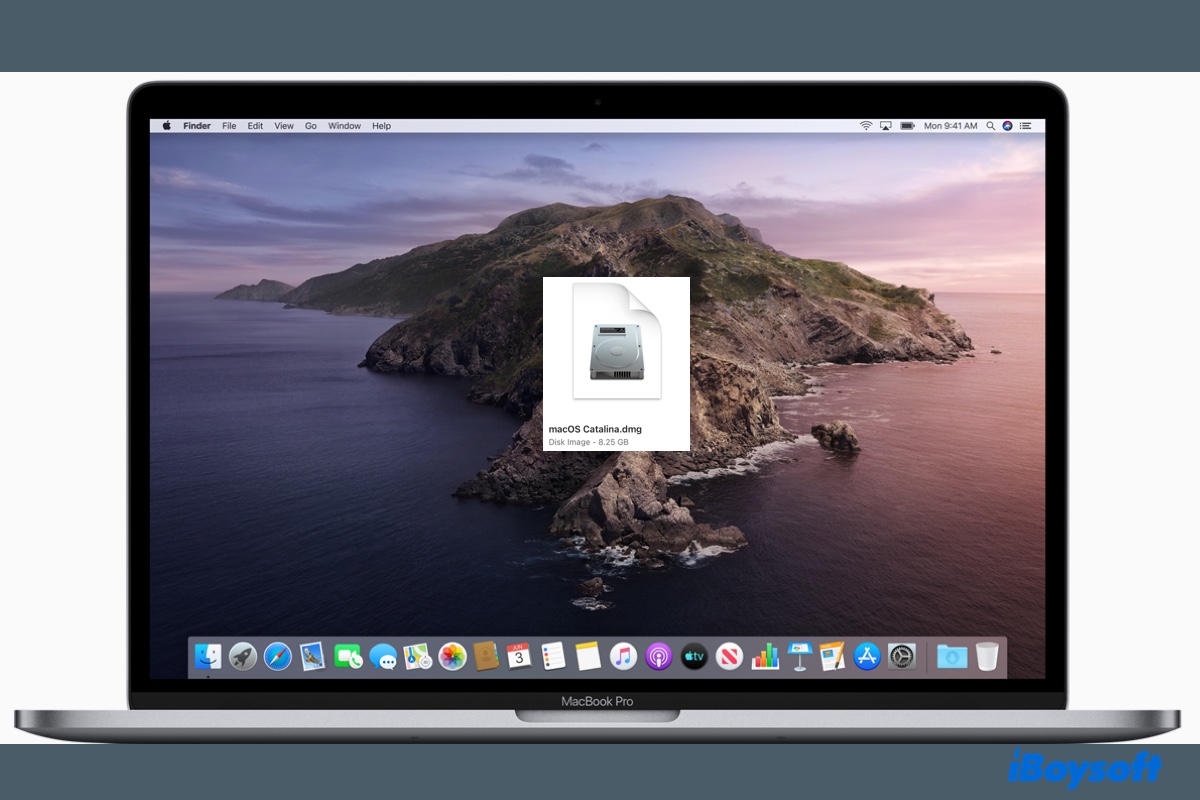
A macOS Catalina DMG file is useful when you want to perform a clean macOS installation, revert to macOS Catalina, install macOS Catalina in a virtual machine like VirtualBox, VMware, or Parallels, or recreate a USB installer when the macOS Catalina USB installer is unbootable. In this post, we'll provide the direct link where you can download the macOS Catalina 10.15 DMG file.
What is a macOS Catalina DMG file?
A macOS Catalina DMG file is a disk image file that contains the installer for macOS Catalina. It can be mounted as a volume within the Finder and behaves much like a physical disk. You can use a macOS Catalina DMG file to create a bootable USB installer or a virtual machine to install or upgrade to macOS Catalina on your Mac or Windows PC.
Download macOS Catalina DMG file safely
Note: The safest way to download the macOS Catalina DMG file is from iBoysoft DiskGeeker. It provides reliable and virus-free macOS DMG files for macOS High Sierra and later versions. Besides, it allows you to create macOS bootable USB installers easily. Whether you want to get the macOS Catalina DMG file or make a Catalina bootable USB, it's the right tool.
This tool works on both macOS and Windows. If you're downloading the macOS Catalina DMG from Windows or don't have a compatible Mac from which you can create the macOS Catalina DMG file, take the following steps to download macOS Catalina DMG:
Step 1: Free download and install iBoysoft DiskGeeker.
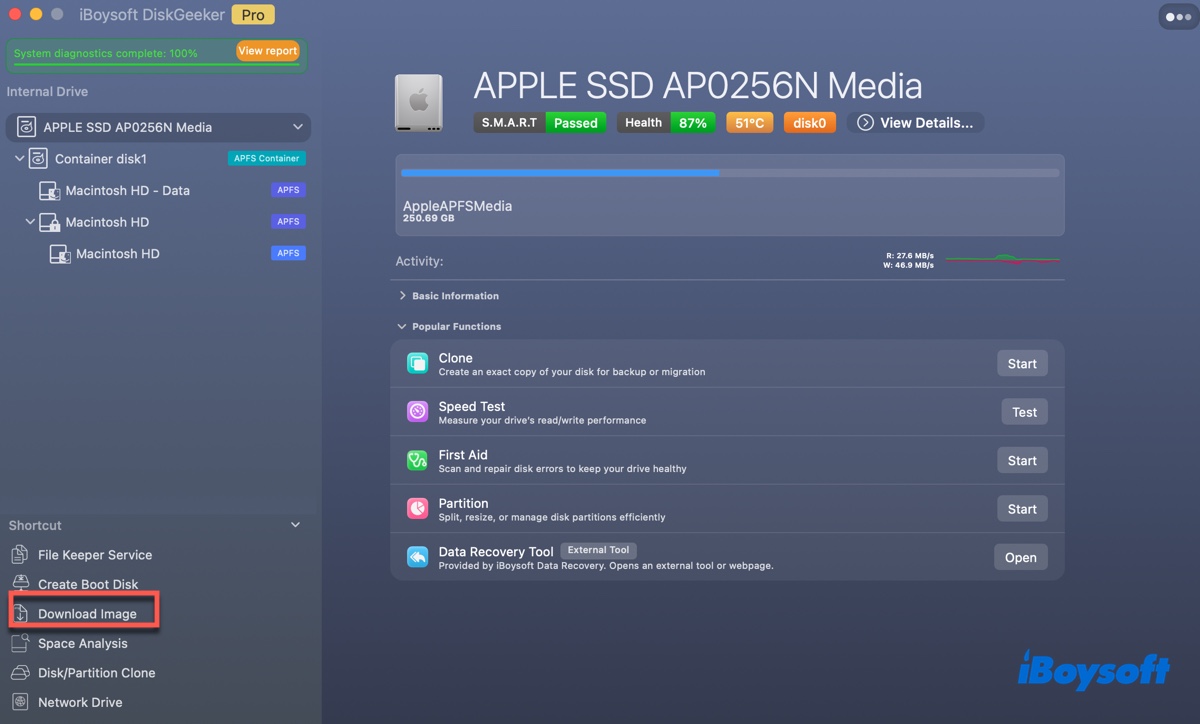
Step 2: Launch the tool and click Download Image.
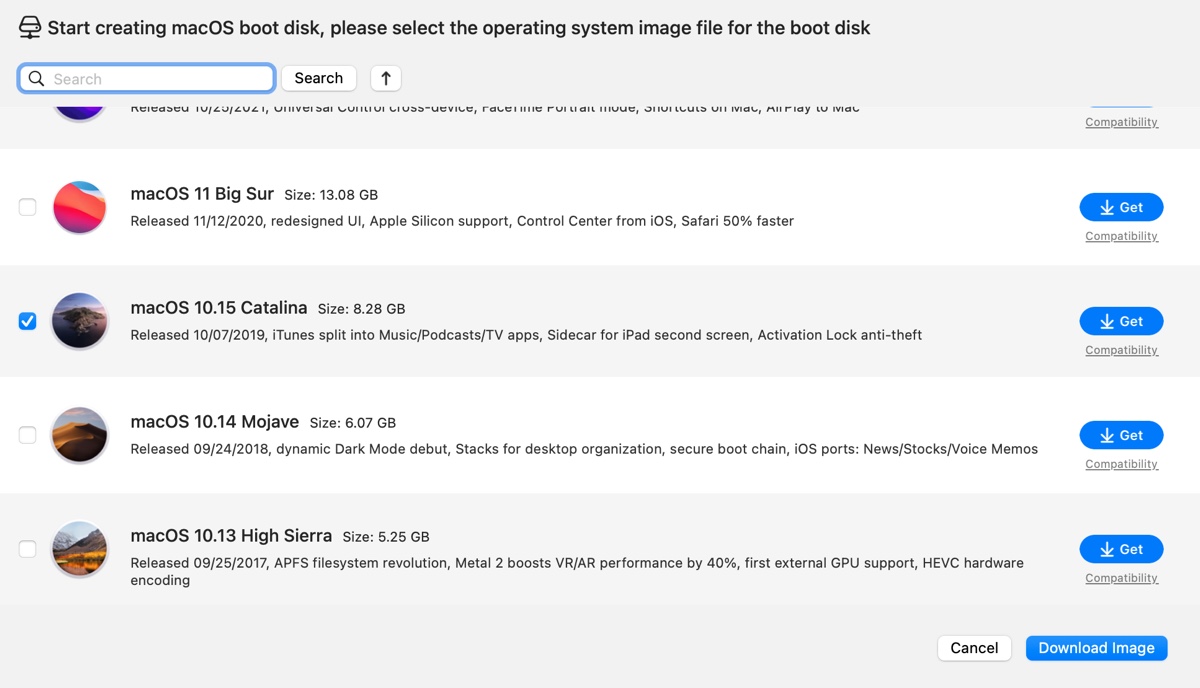
Step 3: Select macOS 10.15 Catalina and click Download Image.
Step 4: Choose a location to save the file, then wait for the Catalina DMG to be downloaded.
* If you intend to download the DMG file to create a Catalina boot drive, insert a USB external drive with 10GB or more storage space into your Mac, then select Create boot disk and follow the instructions.
Download macOS Catalina DMG file directly from internet
If you prefer downloading the macOS Catalina DMG file directly from online archives, get it directly from the download links below. NOTE THAT THESE RESOURCES ARE FROM THE INTERNET! To avoid data loss, try the downloaded DMG file on a virtual machine or an external drive before installing it on your Mac.
Download macOS Catalina 10.15.7 DMG File (MediaFire)
Download macOS Catalina 10.15.7 DMG File (Mega)
Download macOS Catalina DMG file (Google Drive) (Password: Geekrar.com)
Or, you can download macOS Catalina safely from iBoysoft DiskGeeker.
Share this post to benefit others who need a macOS Catalina DMG direct download.
Create a macOS Catalina DMG file on Mac
If your Mac is compatible with macOS Catalina (Check the compatibility list below), you can create the macOS Catalina DMG file yourself.
Mac models that support macOS Catalina:
- MacBook (Early 2015 or newer)
- MacBook Air (Mid-2012 or newer)
- MacBook Pro (Mid 2012 or newer, Retina display not needed)
- Mac Mini (Late 2012 or newer)
- Mac Pro (Late 2013 or newer)
- iMac (Late 2012 or newer)
- iMac Pro
Step 1: Download the macOS Catalina full installer
Tips: Starting with macOS High Sierra, Apple changed its distribution method for macOS. Instead of providing a DMG (disk image file) that users would download and then mount as a virtual disk to run the installer, Apple began distributing the macOS installer directly as an application through the Mac App Store.
If you're trying to upgrade your Mac to macOS Catalina, you just need to run the installer without needing the DMG file.
To make a macOS Catalina DMG file, you need to convert the installer Apple provides. First, download the macOS Catalina 10.15 full installer from the Mac App Store by the link below.
Download macOS Catalina from App Store
Tap Download when it asks whether you want to download macOS Catalina 10.15.7.
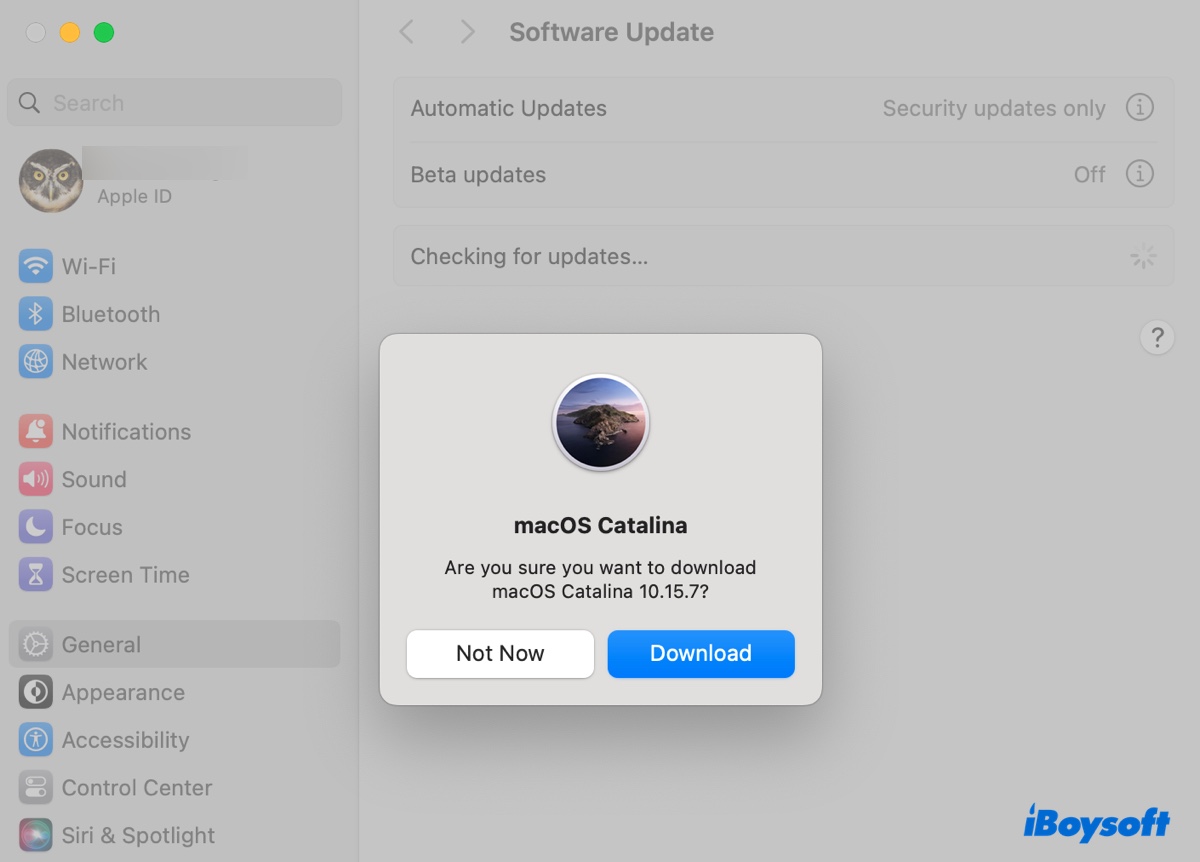
When the download completes, click the pop-up window and select "Quit Install macOS" to quit the installation.
Step 2: Create the macOS Catalina DMG file
There are two ways to create the macOS Catalina DMG file: either from Disk Utility or Terminal.
To create the macOS Catalina DMG file in Disk Utility, take the following steps:
- Right-click on your Mac's desktop and choose "New Folder."
- Rename it as macOS Catalina.
- Open the Applications folder.
- Right-click the downloaded macOS Catalina installer, and click Copy.
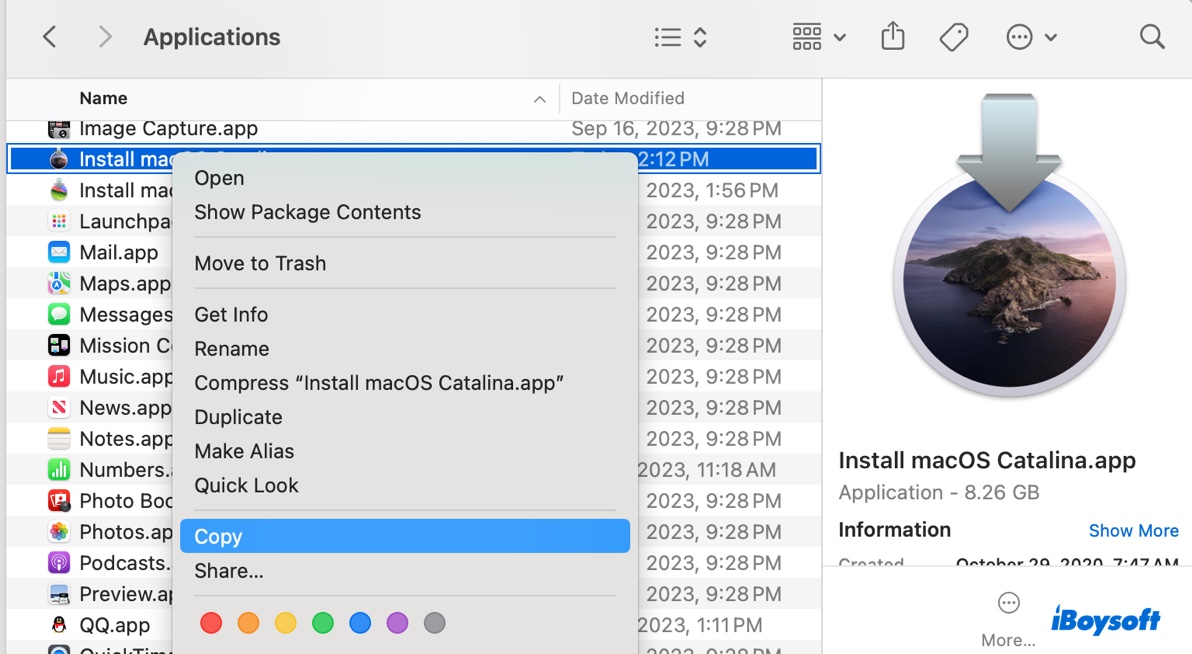
- Open the new folder, right-click on the empty space, and click "Paste Item."
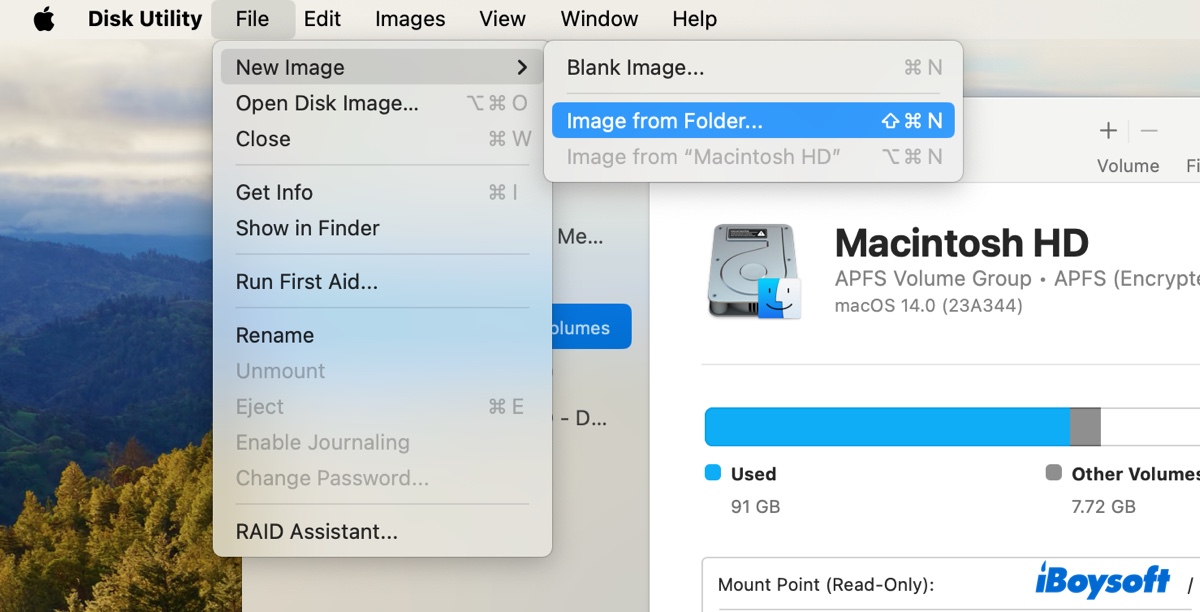
- Launch Disk Utility.
- From the menu bar, click File > New Image > Image from Folder.
- Select the "macOS Catalina" folder you created before and click Choose.
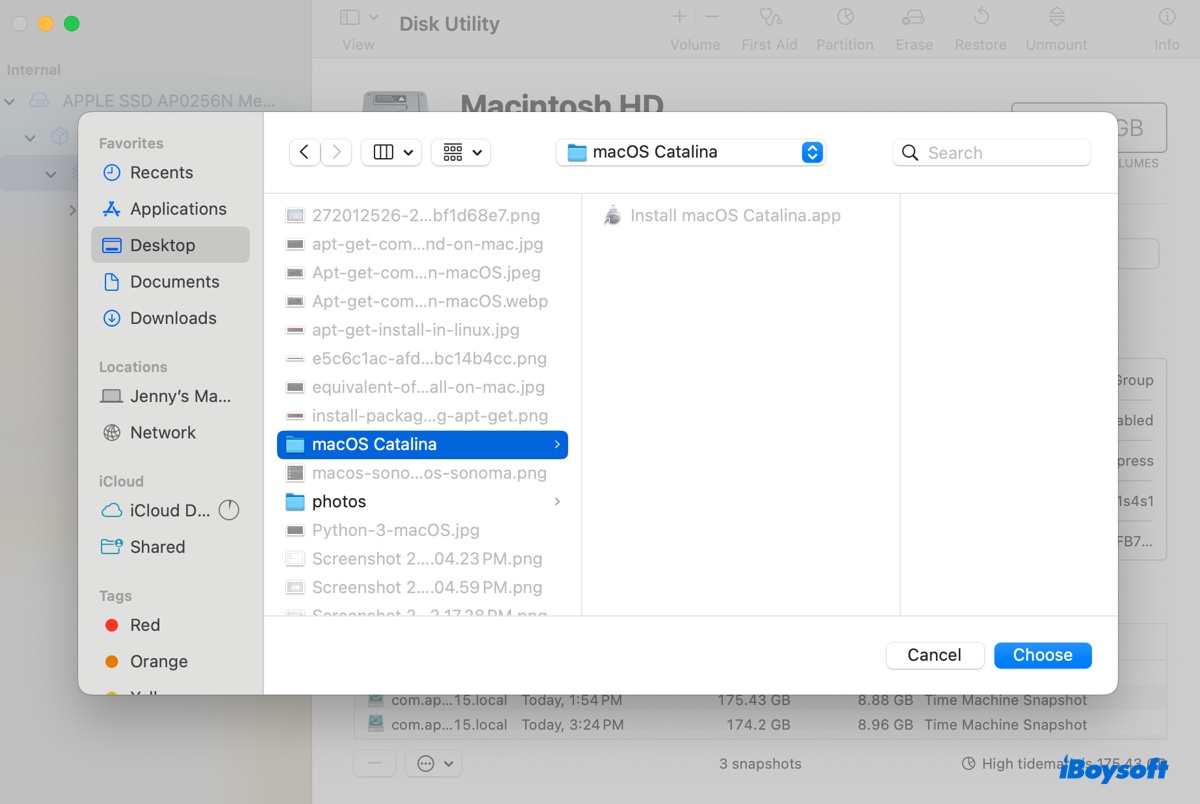
- Tap the Save button.
- Wait while Disk Utility is creating the DMG file.
To create a bootable macOS Catalina DMG file in Terminal, use the steps below:
- Open Terminal.
- Run the command below to create an empty DMG file.hdiutil create -o Catalina -size 15000m -volname Catalina -layout SPUD -fs HFS+J
- Mount the DMG file.hdiutil attach Catalina.dmg -noverify -mountpoint /Volumes/Catalina
- Create a bootable macOS Catalina DMG file.sudo /Applications/Install\ macOS\ Catalina.app/Contents/Resources/createinstallmedia --volume /Volumes/Catalina –nointeraction
- Type your admin password and hit Enter.
- Eject the DMG file.
Now that you have mastered the way to create a macOS Catalina DMG file on Mac; you can share the steps with other people.
Read Also:
How to Download/Create macOS Catalina ISO file?
How to Download & Create macOS Ventura DMG File for Free?
How to Download/Create macOS Monterey DMG File?
FAQs about macOS Catalina DMG file
Quick answers
Where can I download macOS Catalina DMG?
You can download the macOS Catalina DMG file from the links provided in this article.
How to download macOS Catalina DMG or Catalina installer app?
You can download the macOS Catalina installer app from the App Store on a compatible Mac. For the macOS Catalina DMG file, you can get its direct download link in this post.
How do I download Catalina on an old Mac?
You can download Catalina on an old Mac that's compatible with it from the App Store. However, if your old Mac isn't supported by macOS Catalina, you need to download its DMG file, as described in this post.