What is RAM? How to Check and Free up RAM on Mac?
What is RAM? How to check RAM usage, how much RAM is needed and how to free up RAM memory on Mac? All are answered here.
On this page
Quick definition
What is RAM? How to check RAM usage, how much RAM is needed and how to free up RAM memory on Mac? All are answered here.
What is RAM? How to Check and Reclaim RAM Memory on Mac?
How to free up RAM on Mac?
Quick Answer:
- Check memory pressure
- Quit heavy apps
- Clear RAM via sudo purge command
- Reclaim RAM using iBoysoft Cleaner
RAM or random access memory, is known as your computer's short-term memory. It is a crucial hardware component for your Mac or PC to perform smoothly. Here, we'll explain exactly what RAM is, the difference between ROM and general storage, and how to check RAM usage on Mac.
What is RAM
RAM (random access memory) stores the data that help your computer perform its most important tasks, such as loading apps, browsing websites, and editing documents. RAM lets you open apps and files quickly because your computer can easily find the data in its short-term memory, different from virtual memory.
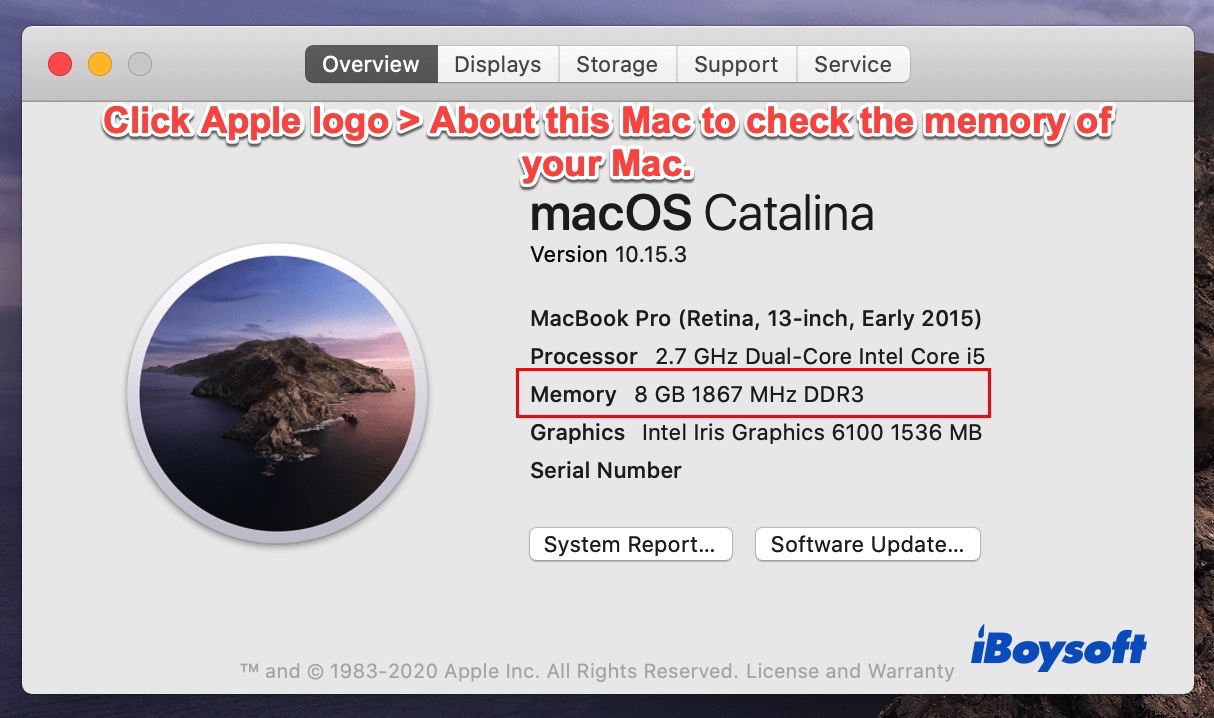
It's easy to check how much RAM you have on a Mac. Click the Apple icon and select About This Mac. Navigate to Memory, and find information like "8 GB 1867 MHz DDR3". Here, 8GB is how much RAM you have. RAM speed is 1867 MHz and RAM type is DDR3.
What are the main types of RAM
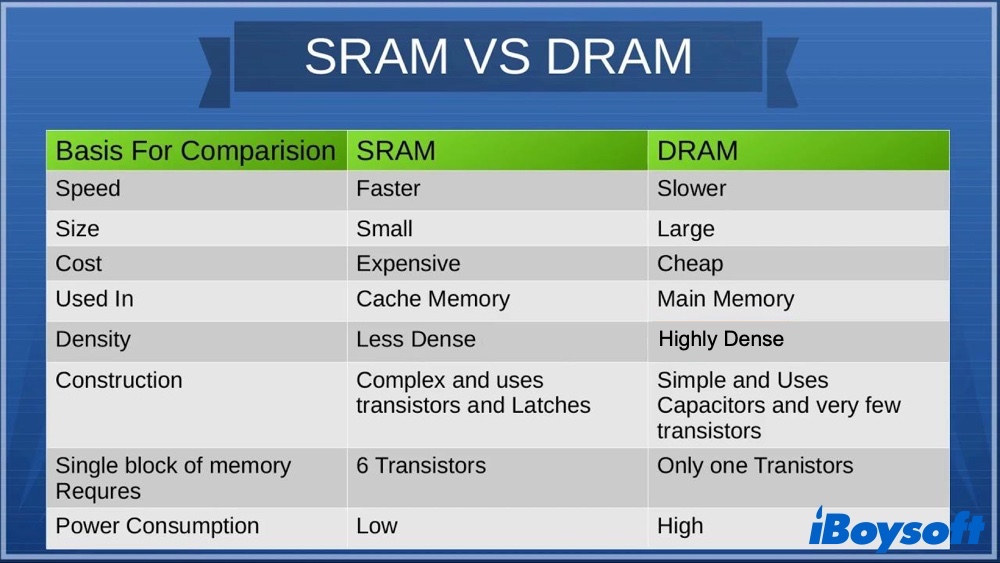
Normally, there are two main types of RAM: SRAM and DRAM.
SRAM (static random access memory) data is stored in transistors and uses power constantly to keep data fresh. That's why it's called static because it doesn't need to be refreshed. SRAM is used in cache memories, like the small files your processor (CPU) accesses all the time.
DRAM (dynamic random access memory) data is stored in capacitors and slowly discharges power. It's called dynamic RAM because the gradual energy decline means that it needs to be refreshed periodically to work properly. When the power is cut, the electrical charges dissipate and the RAM is emptied of data.
What's the difference between RAM, ROM, and general storage
When talking about random access memory vs. Storage, you should know they are two different types of data storage devices. Storage is the internal HDD or SSD where data is permanently stored for future access. And these data are non-volatile. RAM is volatile and data disappears after the computer is off because it only stores the computer's temporary data.
When referring to RAM vs. ROM, you may be more confused because their acronyms are so similar. ROM, short for read-only memory, is computer memory containing data that can only be read, not written to. ROM contains boot-up programming that is used each time a computer is turned on. It generally can't be altered or reprogrammed.
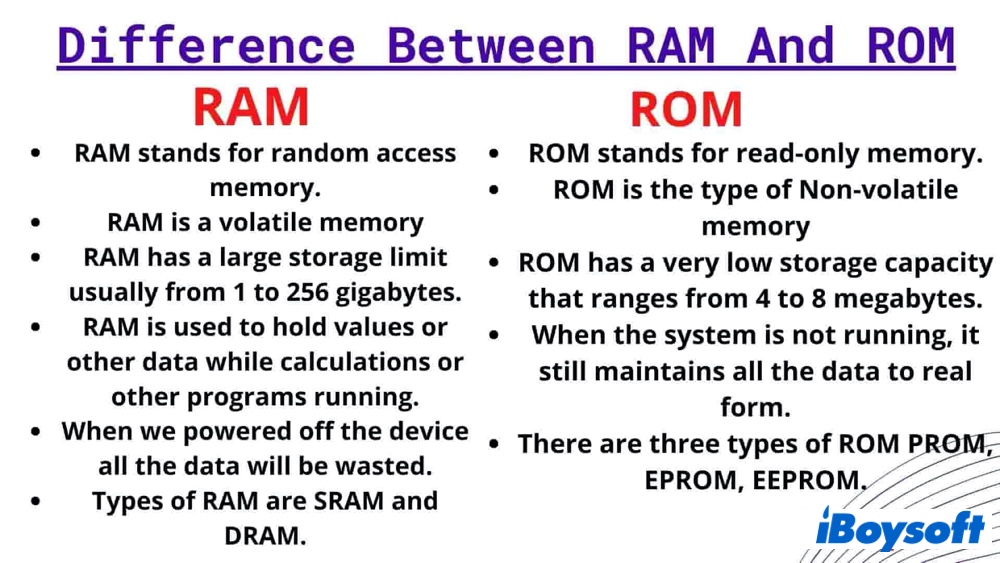
The data in ROM is nonvolatile and isn't lost when the computer power is turned off. As a result, read-only memory is used for permanent data storage. random access memory, on the other hand, can only hold data temporarily. ROM is generally several megabytes of storage, while RAM is several gigabytes.
How to check RAM usage on Mac
Your Mac's total RAM capacity is different from how much available RAM you have right now. But checking your RAM usages on Mac is easy too.
- Hit Command and the Space bar to open up Spotlight Search. Type in "Activity Monitor" and open it up.
- Select the Memory tab at the top, and look at the bottom of the window.
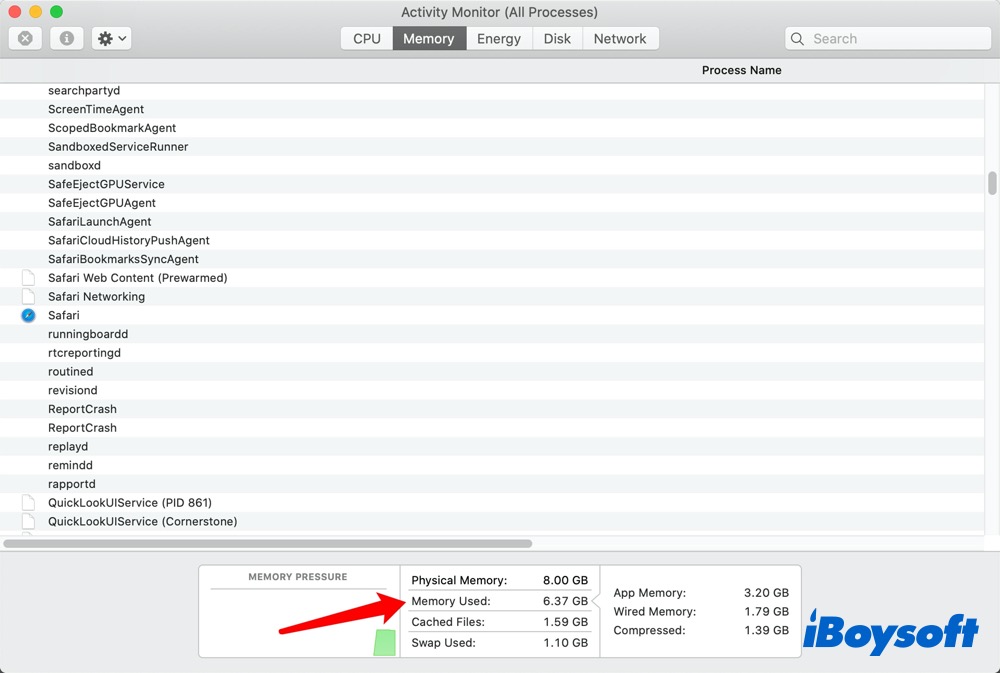
Physical memory is your total RAM, while Memory Used, including App Memory, Wired Memory, and Compressed, is the amount of RAM your Mac is currently using. If you think a lot of RAM is currently being used, freeing up some of this memory will help to speed up your Mac.
How much RAM do I need
Regardless of the type of RAM you use, you may notice inadequate memory can lead your Mac or PC to perform poorly and even pop up an error saying "Your system has run out of application memory". You may start to wonder how much RAM do you need. The amount of computer RAM you need depends on what you do.
8GB of RAM is a standard memory size for modern computers. If you browse the web and edit basic documents like Word and Excel files, 8GB of RAM is enough.
If you're a game addict or need to do multimedia work, most computers will perform very well with 16GB of RAM. 32GB of RAM always applied to high-end computers like Mac Pro and is widely used by professional engineers.
How do I Free up RAM Memory on Mac
If your Mac is armed with only 8GB of RAM or is short on memory usage, it's time to reclaim RAM memory on Mac. Try the following methods to clear RAM on your Mac:
Check Memory Pressure
The primary thing is to check memory pressure. Open Activity Monitor > Memory and look at the graph at the bottom:
- Green: RAM is fine, even if most of it appears "used."
- Yellow: memory is getting constrained.
- Red: you're genuinely running short and may notice slowdowns.
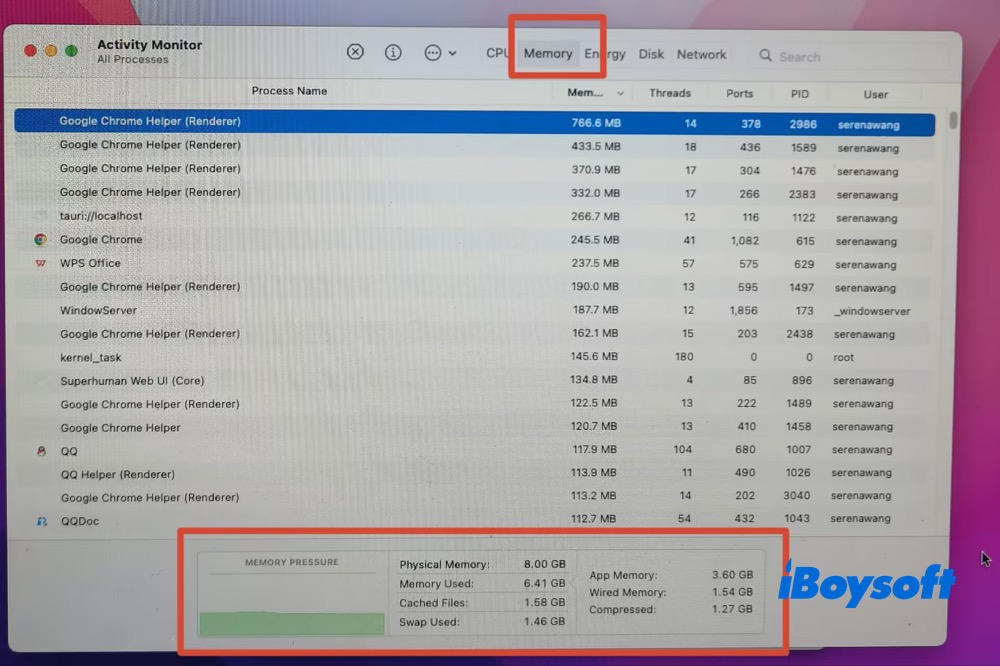
Also check Swap Used in Activity Monitor. Using a few GB of swap isn't necessarily an issue, but high swap usage combined with yellow or red memory pressure and sluggish performance is a stronger indication that your workload is exceeding the available RAM.
Manually Quit Heavy Apps
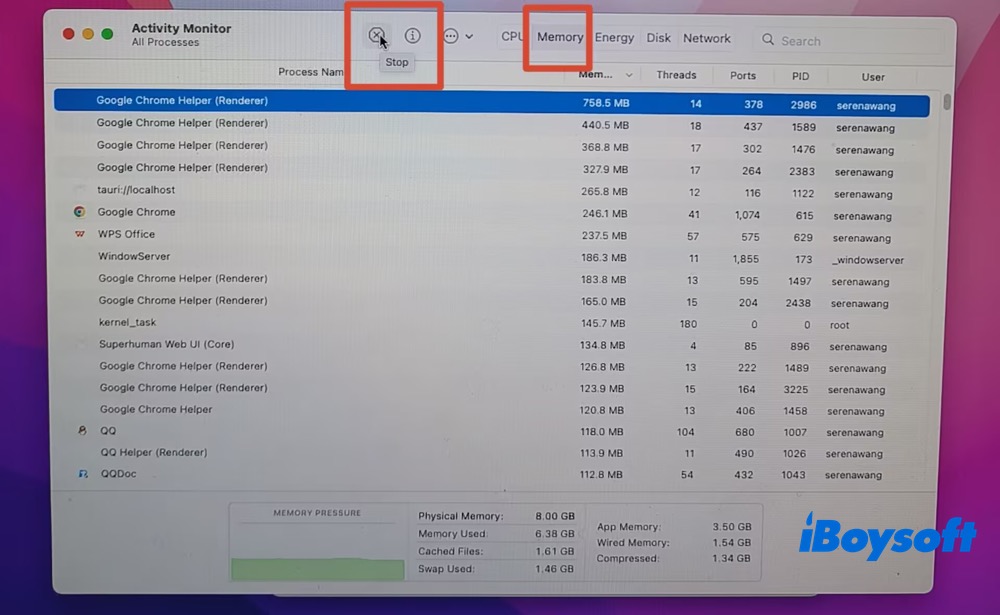
Still in Activity Monitor, check the Memory tab to identify apps that are consuming the most RAM. Select any unnecessary apps and click the X button in the upper-left corner of the toolbar to force quit them. You can also close extra browser tabs and quit background apps you're not currently using.
Restart the Mac
A Mac restart will clear everything and reclaim RAM immediately if the Mac has been running for a long time.
Click the Apple logo in the upper left corner of your screen. Select Restart to completely purge the system memory and temporary caches.
Reclaim RAM via Terminal (Advanced)
Using Terminal commands to free up RAM is best suited to advanced users. If you're comfortable working with the command line, follow the steps below:
- Open Terminal app via Launchpad (for macOS 15 or older) or Applications under Finder (for macOS 26 or later)
- Type sudo purge and press Enter
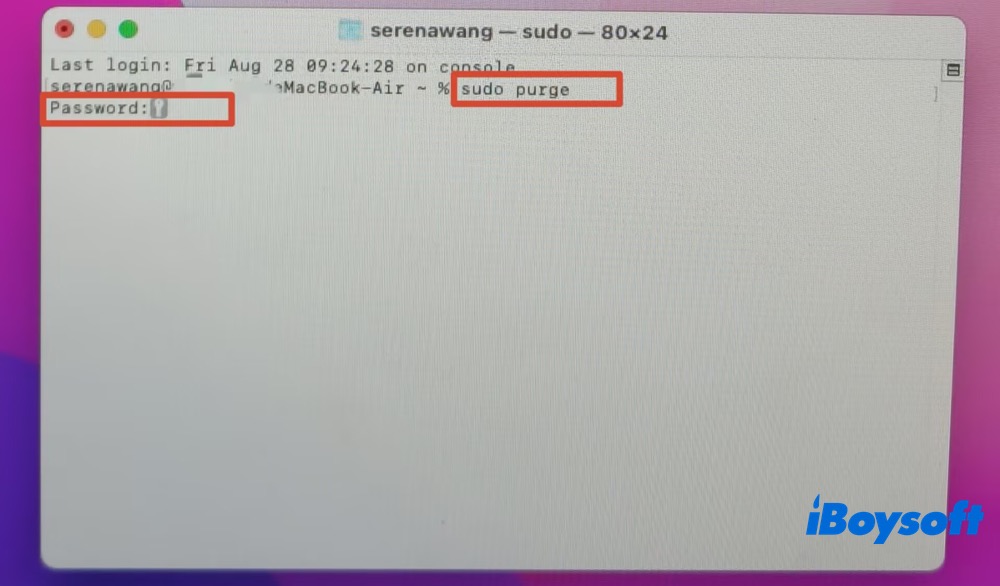
- Enter your Mac administrator password and press Enter to clear inactive cached memory
Use iBoysoft Cleaner to Reclaim RAM (Simple)
For most users, using a dedicated RAM-cleaning tool is much easier than running Terminal commands. iBoysoft Cleaner is one option worth considering. While it's primarily a Mac cleanup and storage management tool, it also offers features for removing system junk, uninstalling unwanted apps, finding large and duplicate files, cleaning up similar photos, managing login items, and freeing up disk space.
More importantly for this situation, iBoysoft Cleaner includes a one-click RAM reclaim feature under More Utilities, which lets you free up memory without entering any commands in Terminal. Here's how to use it:
Step 1. Download and install iBoysoft Cleaner on Mac. Fire it up then.
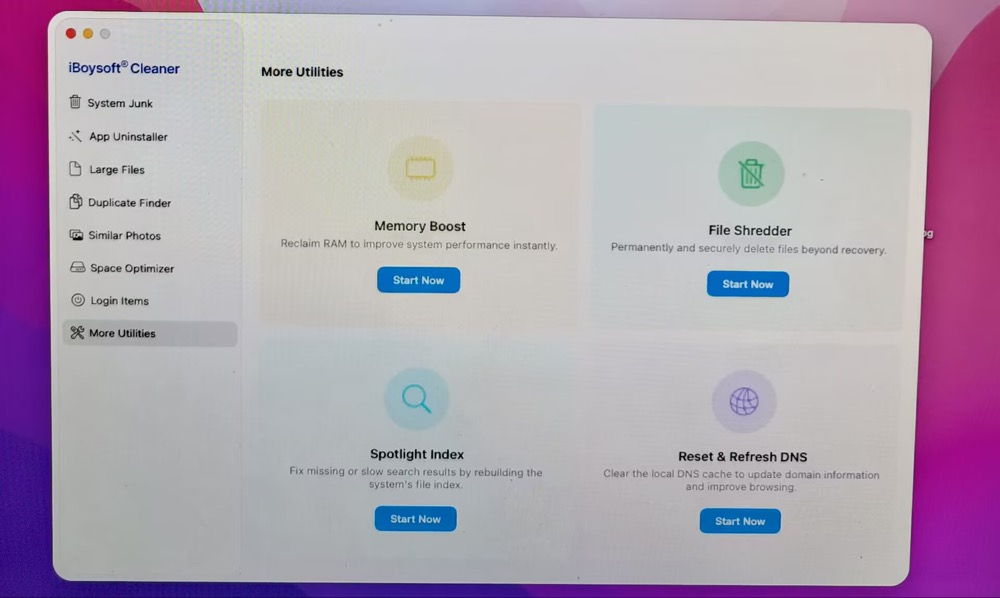
Step 2. Click More Utilities on the home screen > click Start Now on the Memory Boost subsection.
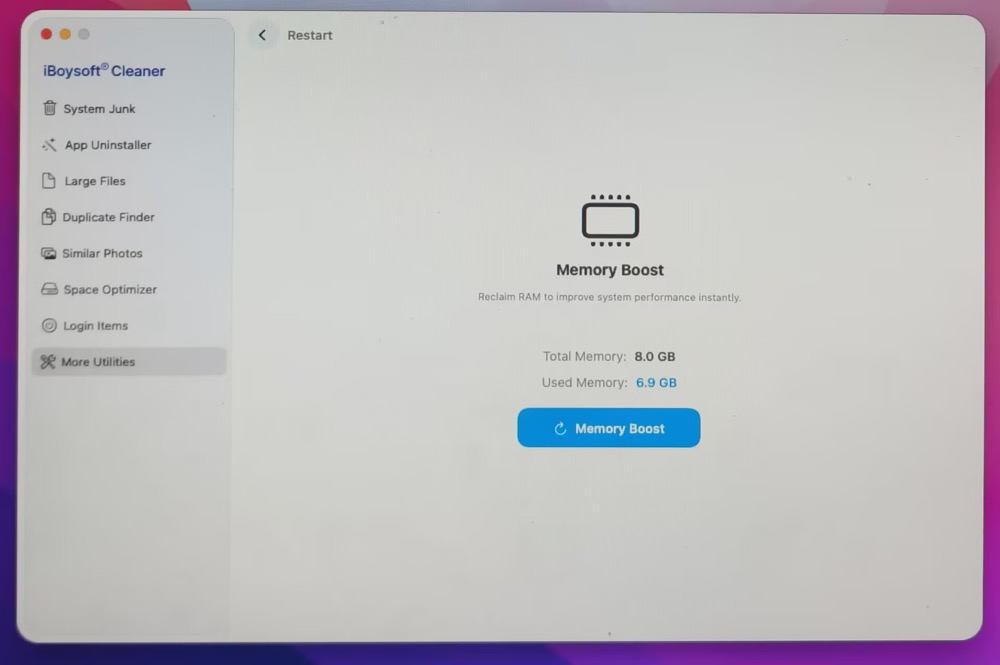
Step 3. The new window will display total memory (8.0 GB) and used memory (6.9 GB). Click Memory Boost.
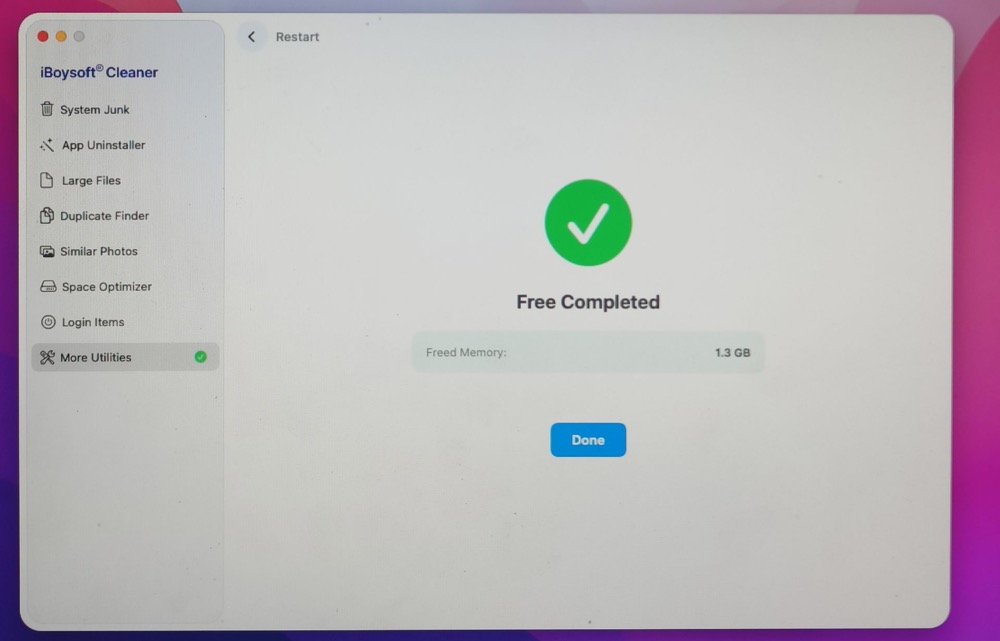
Step 4. When the reclaim process is finished, it shows 1.3 GB memory freed up. Tap Done.
Step 5. Your current memory will be refreshed then. Total memory: 8.0GB; used memory: 5.8GB.
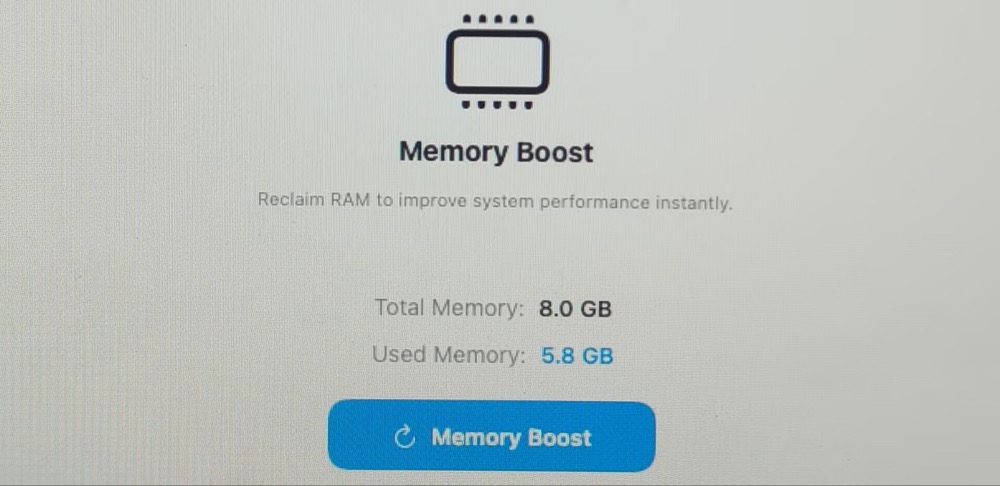
If you want to free up more RAM, you can click the Memory Boost button again. However, each subsequent boost typically reclaims only around 300–500 MB, which is considerably less than the amount freed during the first boost.
FAQs about RAM
Quick answers
How do I get more RAM without upgrading?
If you don't want to spend money on RAM upgrades, then the best way to get more available RAM is to close those apps or broswer that are taking up too much memory. Besides, you don't need to run a dozen applications at the same time.
Does more RAM increase speed?
Generally, the faster the RAM, the faster the processing speed. With faster RAM, you increase the speed at which memory transfers information to other components.